How to use iDeepGo on Windows
iFlowGo is a GPS manipulation utility built exclusively for iOS devices. It operates seamlessly with standard applications like Pokémon GO 🎮, Monster Hunter Now, and Snapchat, letting you alter your GPS coordinates without needing to jailbreak your phone.
This tutorial takes you through every stage of getting iFlowGo up and running for the first time — from pairing via Bluetooth 🔗 to making use of its two principal functions (Joystick & Teleport) — so you can hit the ground running and steer clear of typical pairing hiccups.
⚠️ Important:
Even when moving only a short distance, we advise setting up NextDNS for optimal reliability (our tests maintained a steady spoof for over 10 hours).
For jumps within 15 km, simply go through Steps 1–8 in this article.
For jumps beyond 15 km, you'll need to follow Step 9 (Configure NextDNS for Teleports Over 15 km) as well to ensure your fake location remains consistent.
1. Before You Begin
Ensure you have these items prepared:
- ✅ iFlowGo is installed and operating correctly.
- 🔑 A VIP or trial subscription (Bluetooth pairing won't function without one).
- 📱 An iPhone (iOS) and a 💻 Windows machine.
- 🔵 Your iPhone must be already linked to your Windows PC via Bluetooth before starting iFlowGo.
2. Turn Off Bluetooth Connections
You need to deactivate Bluetooth prior to connecting; otherwise, the link may not establish.
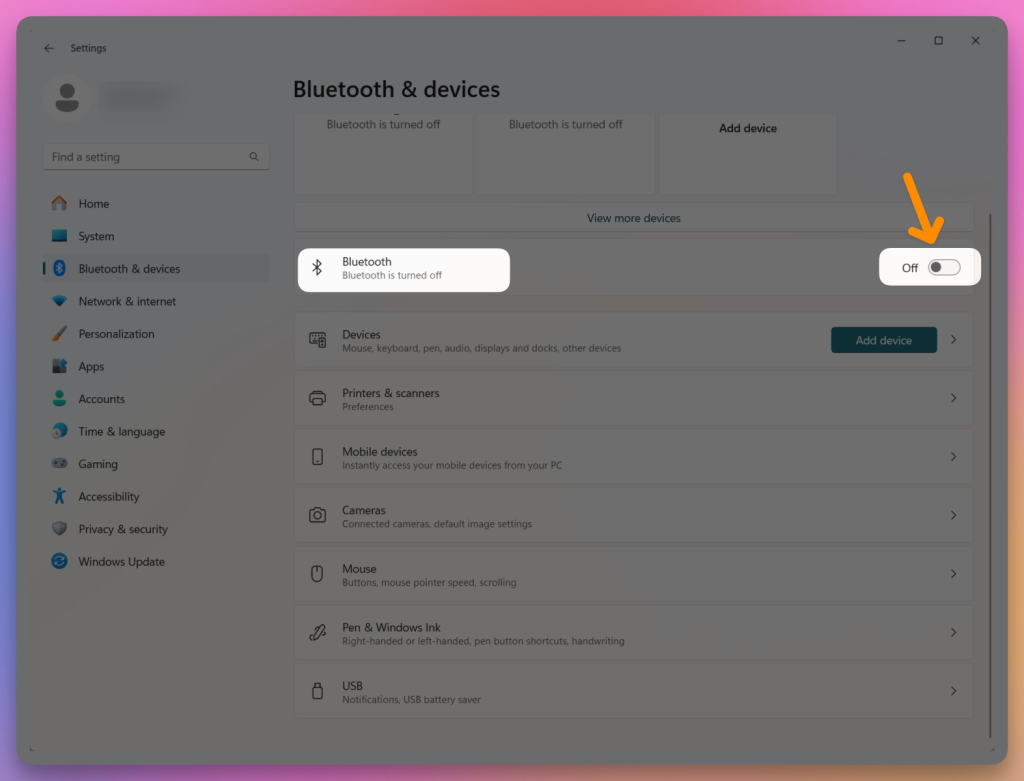
- On your computer 🖥️: Switch Bluetooth off → Confirm no devices are linked.
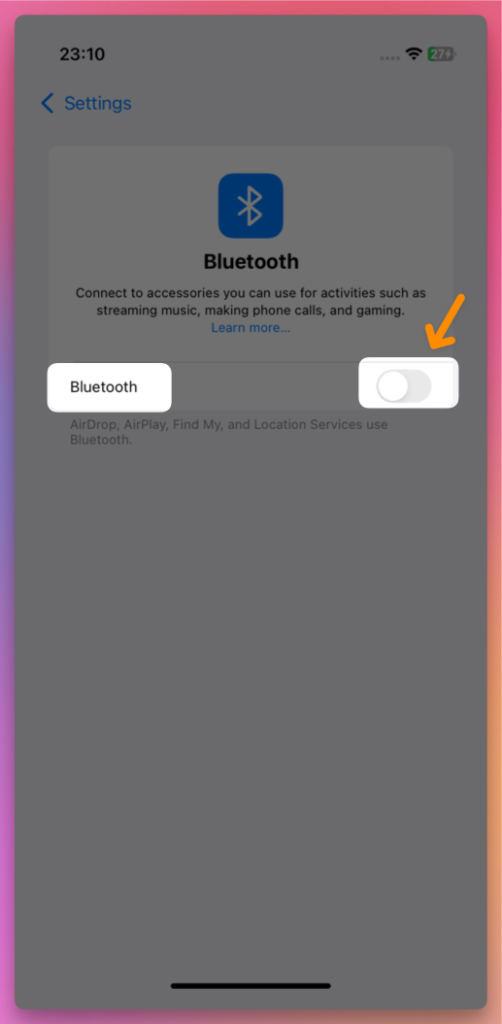
On your iPhone 📱: Turn Bluetooth off.
- Then, pause for 5 seconds.
3. Turn On Bluetooth on Your Computer and iPhone
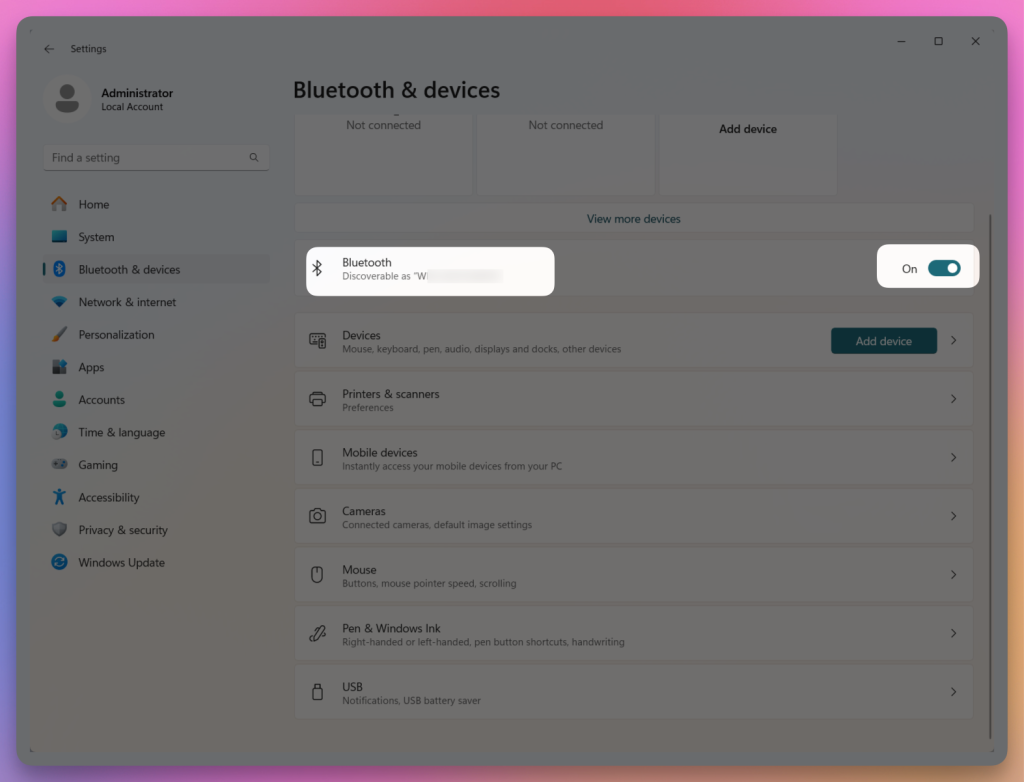
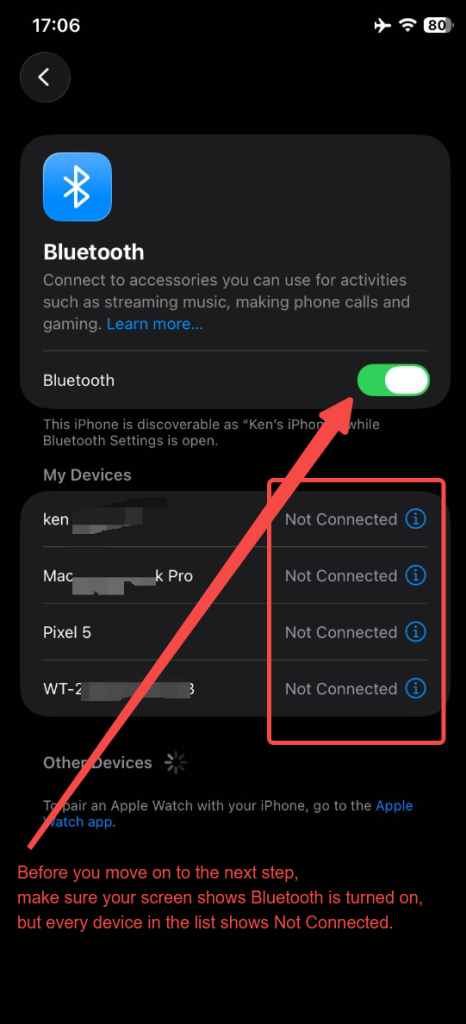
Enable Bluetooth on both your desktop and iPhone. Before proceeding, verify that your screen indicates Bluetooth is on but every device in the list is labeled Not Connected.
4. Launch iFlowGo and Log in with Discord
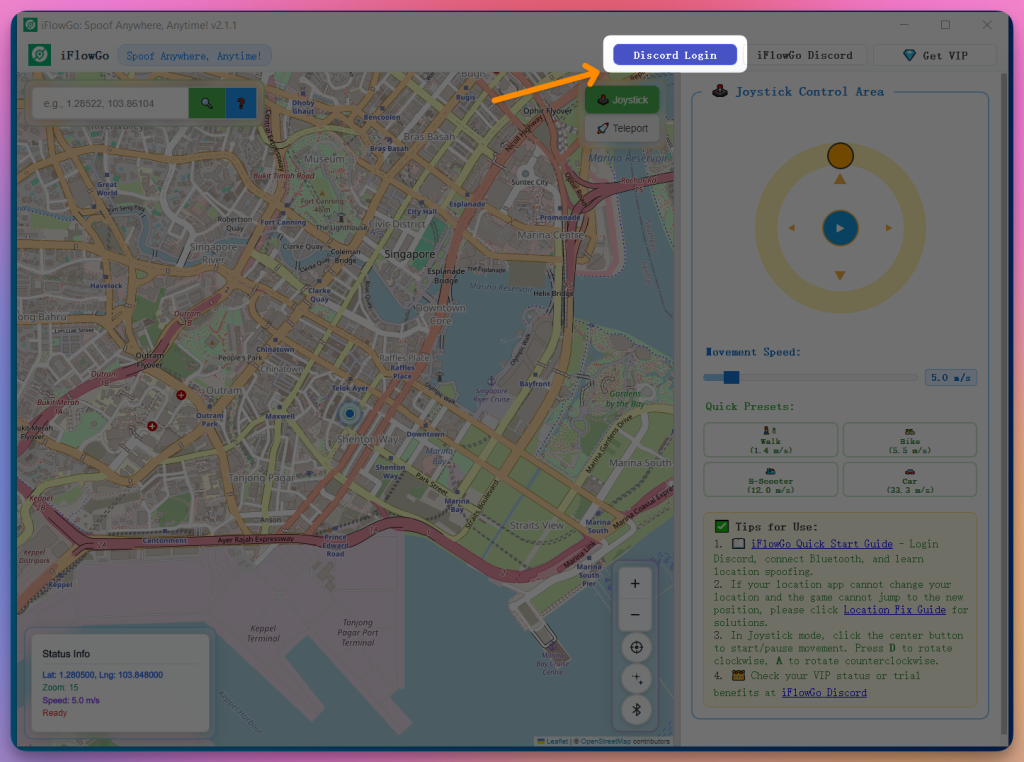
- Start iFlowGo → Press Discord Login.
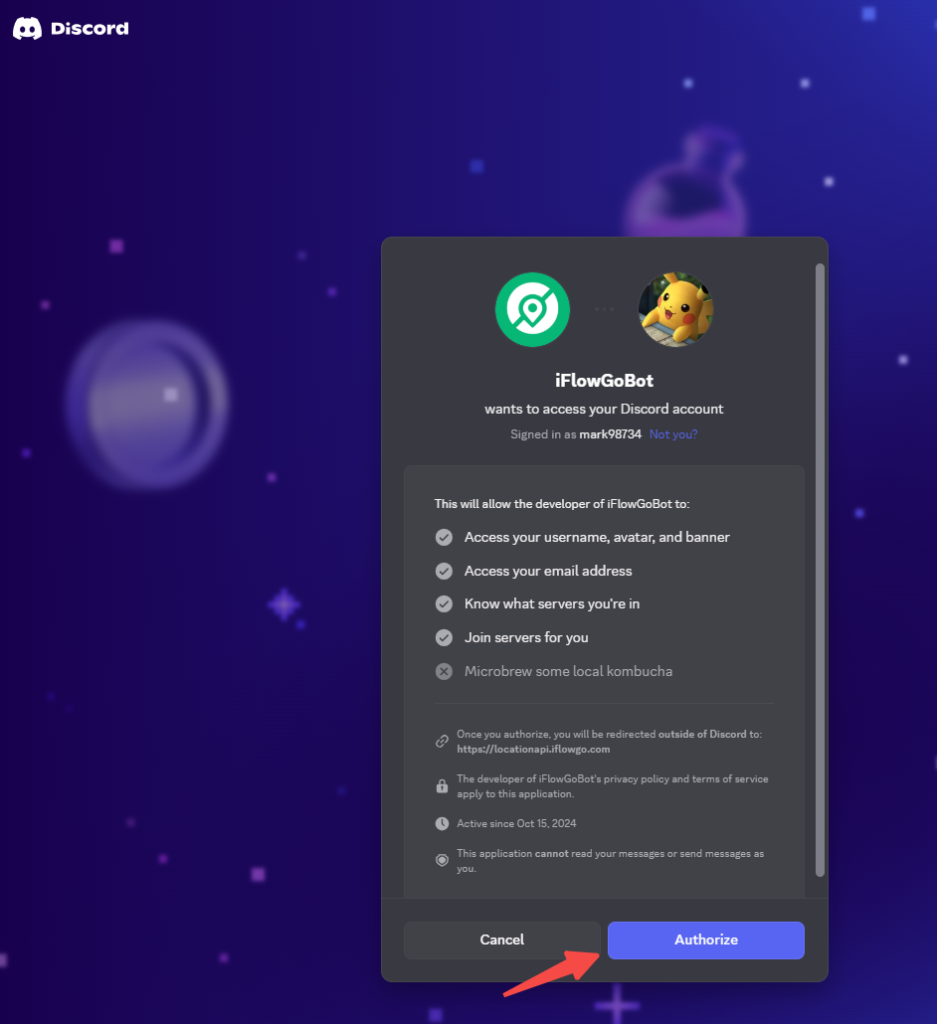
- A browser tab will open to the approval page → Hit Authorize ✅.
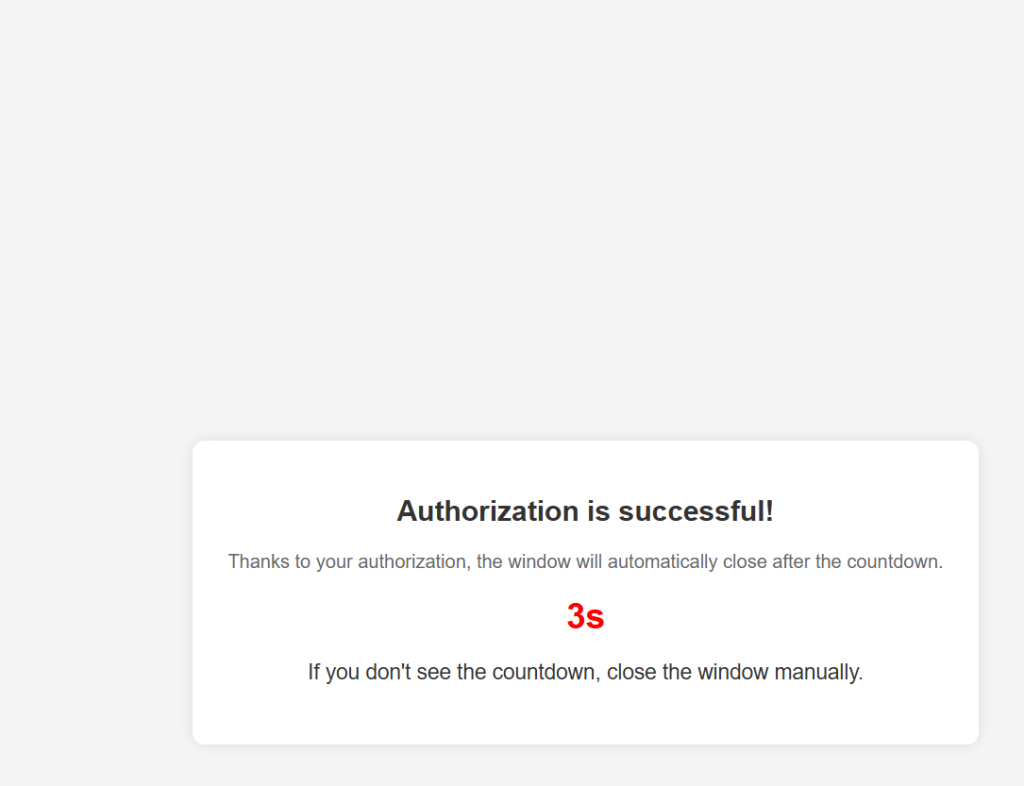
- Switch back to iFlowGo; it will sign you in automatically.
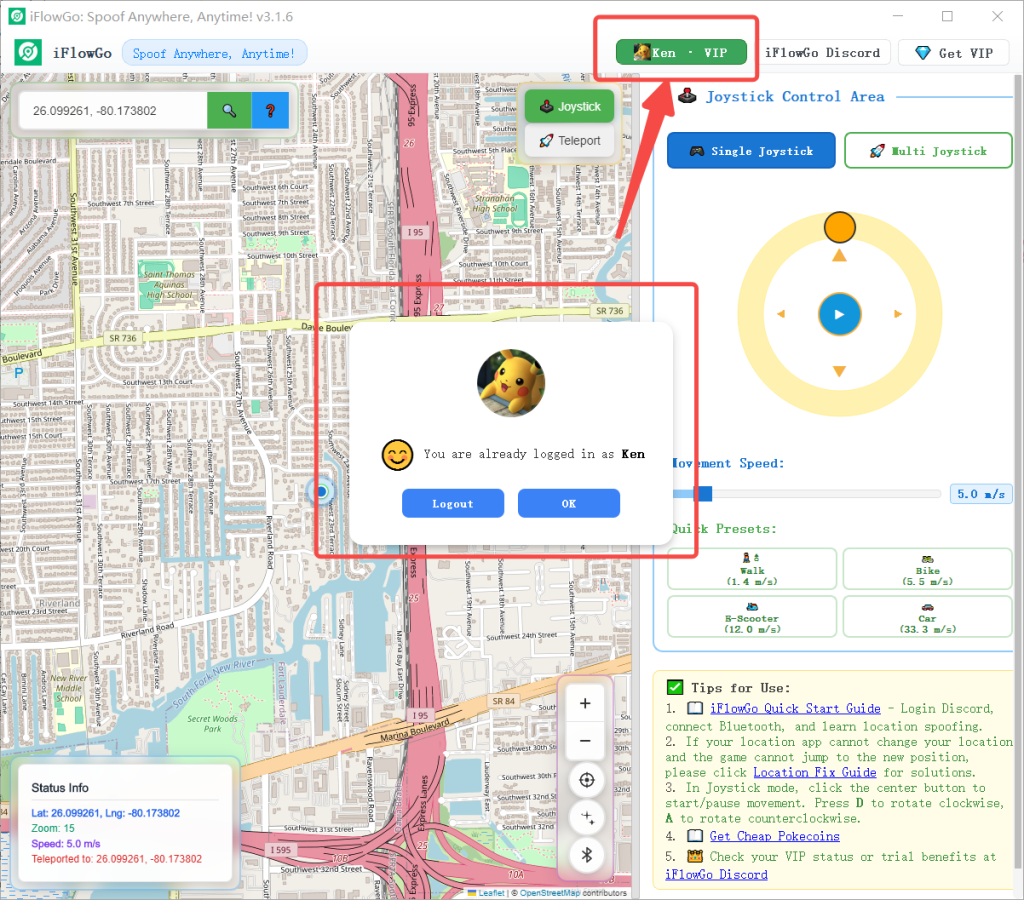
5. Bluetooth Connection Steps (Important)
- Double‑check that Bluetooth is enabled on your PC💻 and your iPhone 📱, yet each item in the Bluetooth list should say Not Connected.
- Watch the Bluetooth pairing video guide:
- Inside iFlowGo, tap the Bluetooth icon → then press the Start Scan button.
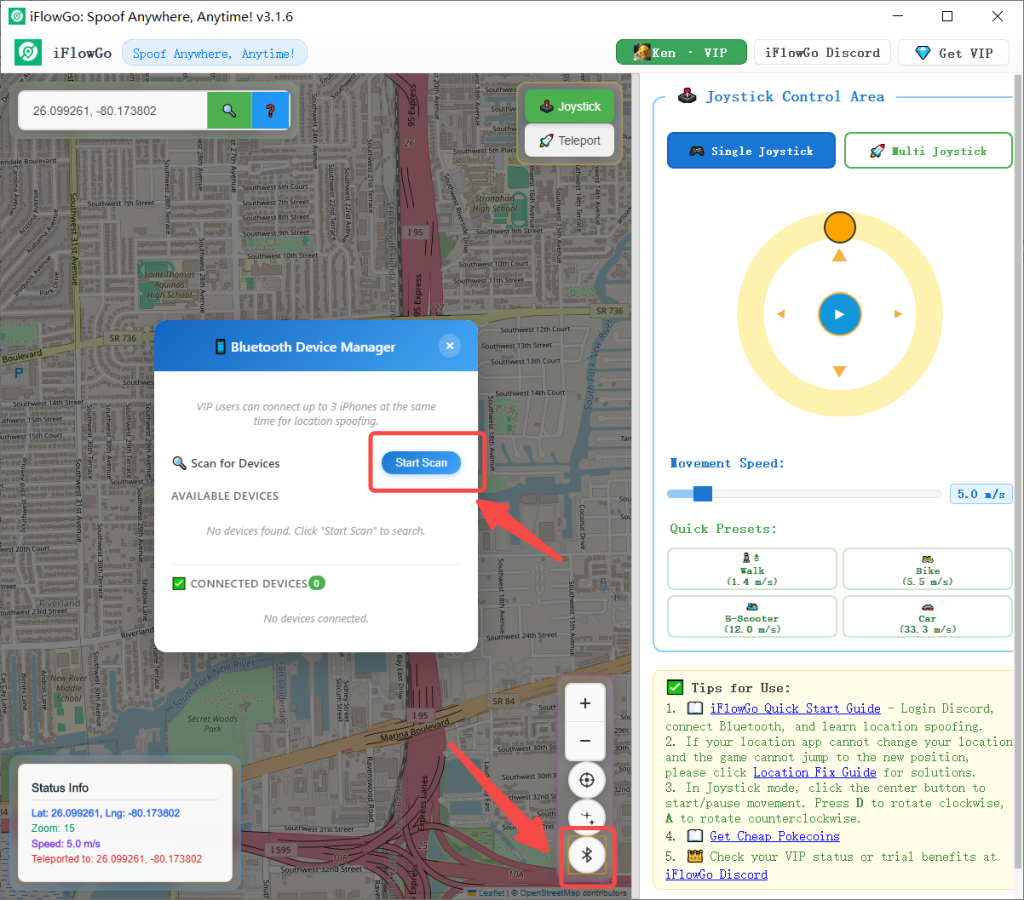
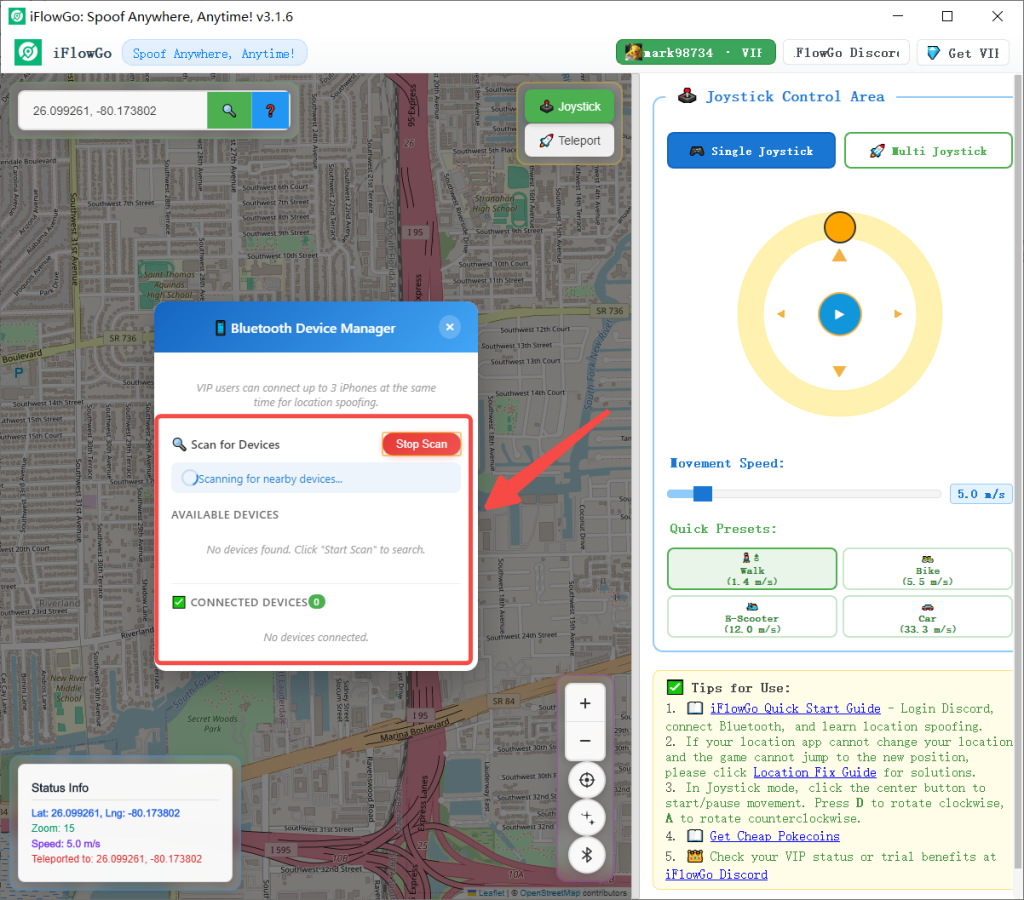
- A roster of Bluetooth peripherals will appear, and their status will change from Offline to Online.
- Note: After clicking Start Scan, your Bluetooth devices should usually show up within 30 seconds. If you've gone 90 seconds without anything appearing, confirm that your Windows Bluetooth or Bluetooth adapter is active. If it's already on but nothing shows, try switching Bluetooth off (or unplugging the adapter), wait about 40 seconds, then switch it back on or plug the adapter back in.
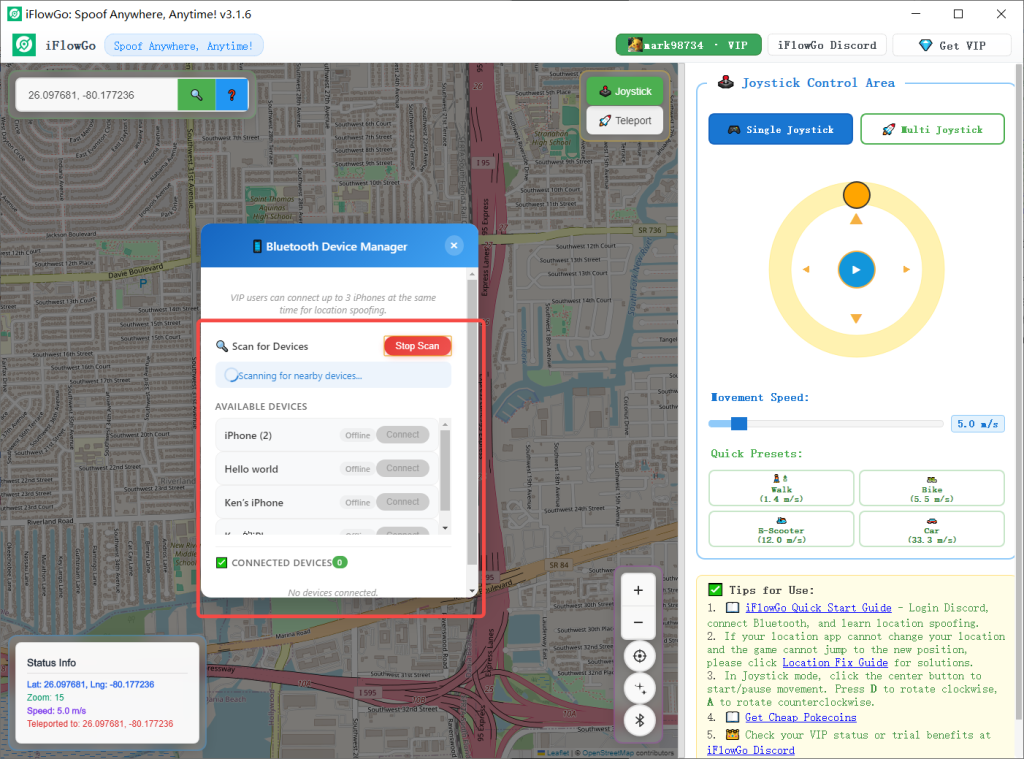
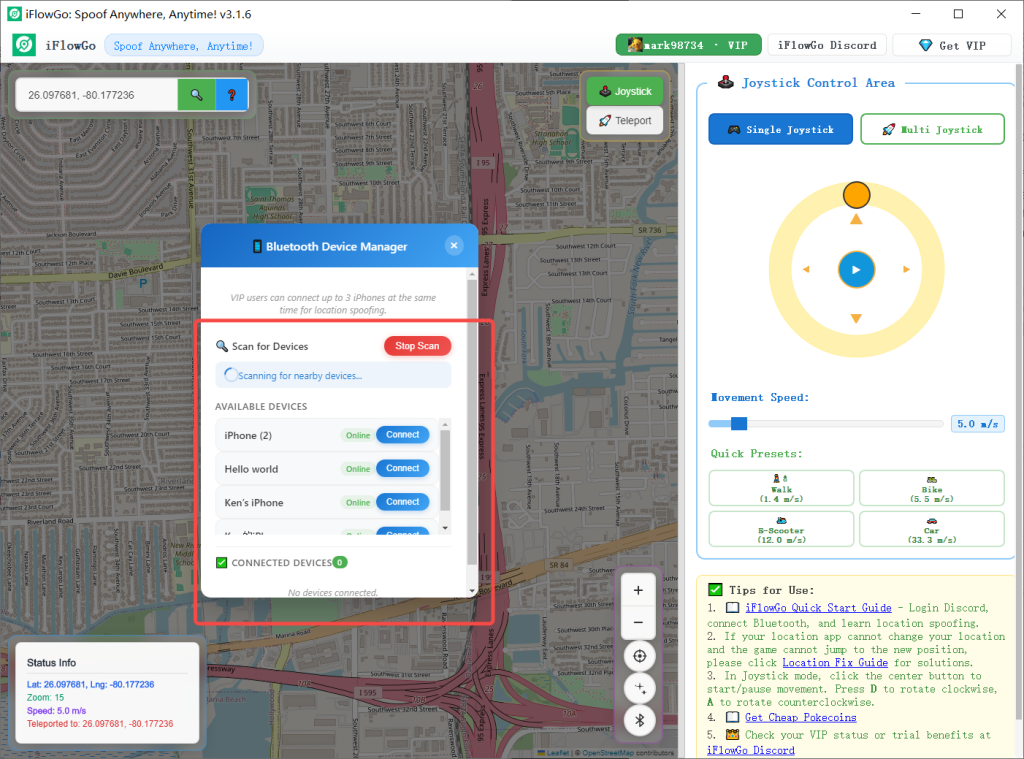
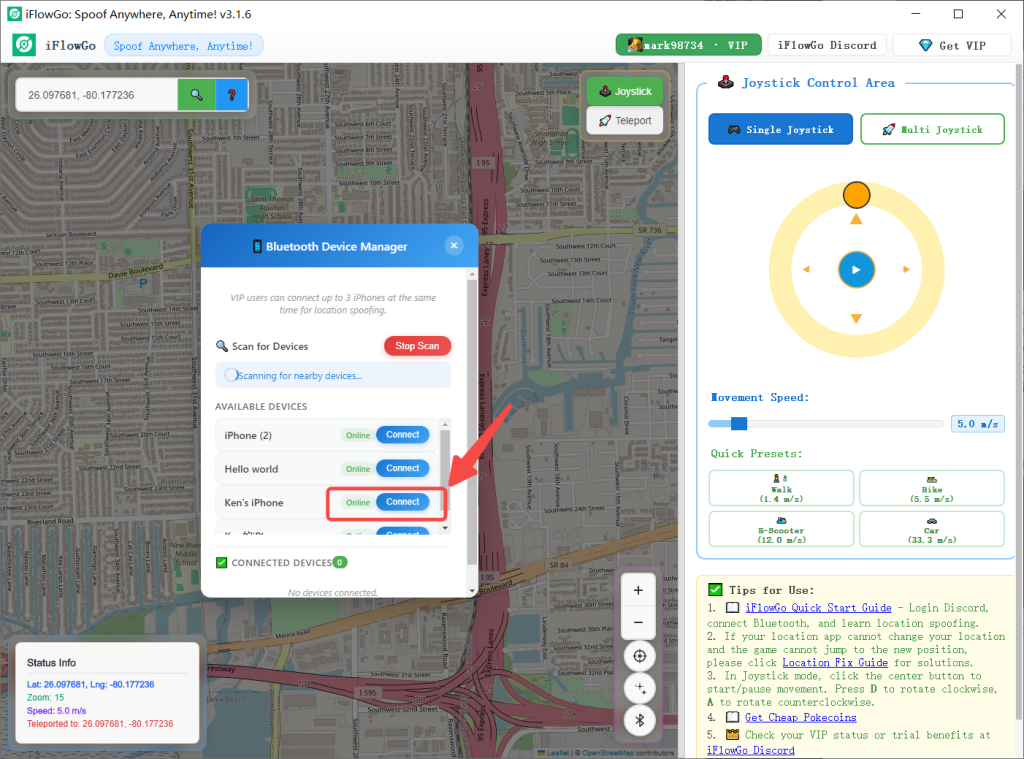
- Now, select any device from the Bluetooth list and strike the Connect button to initiate pairing. A Connecting pop‑up will appear — just wait roughly 3 to 20 seconds.
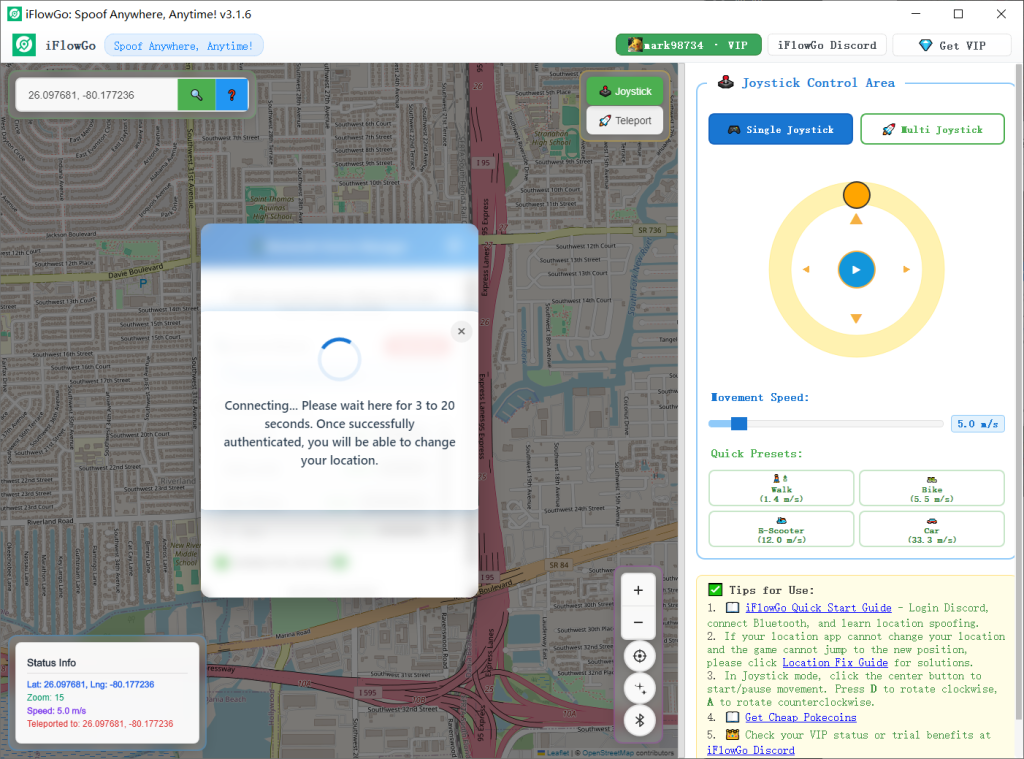
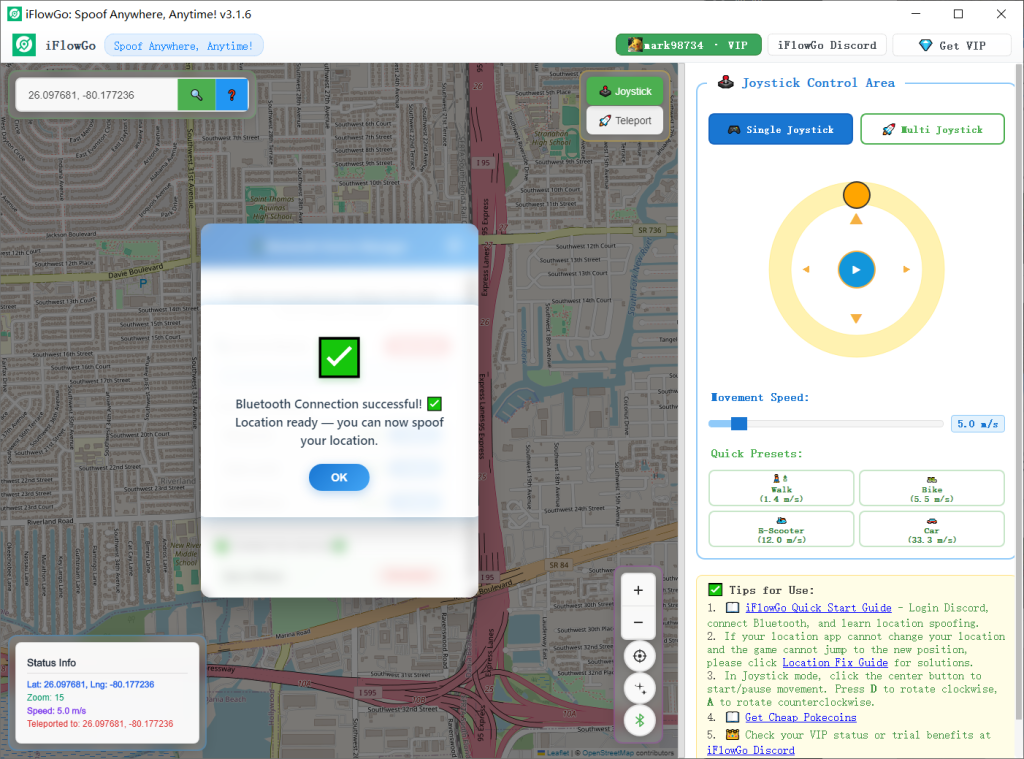
- Once the Bluetooth link is formed, a location initialisation will run — allow about 12 seconds before you can modify your position.
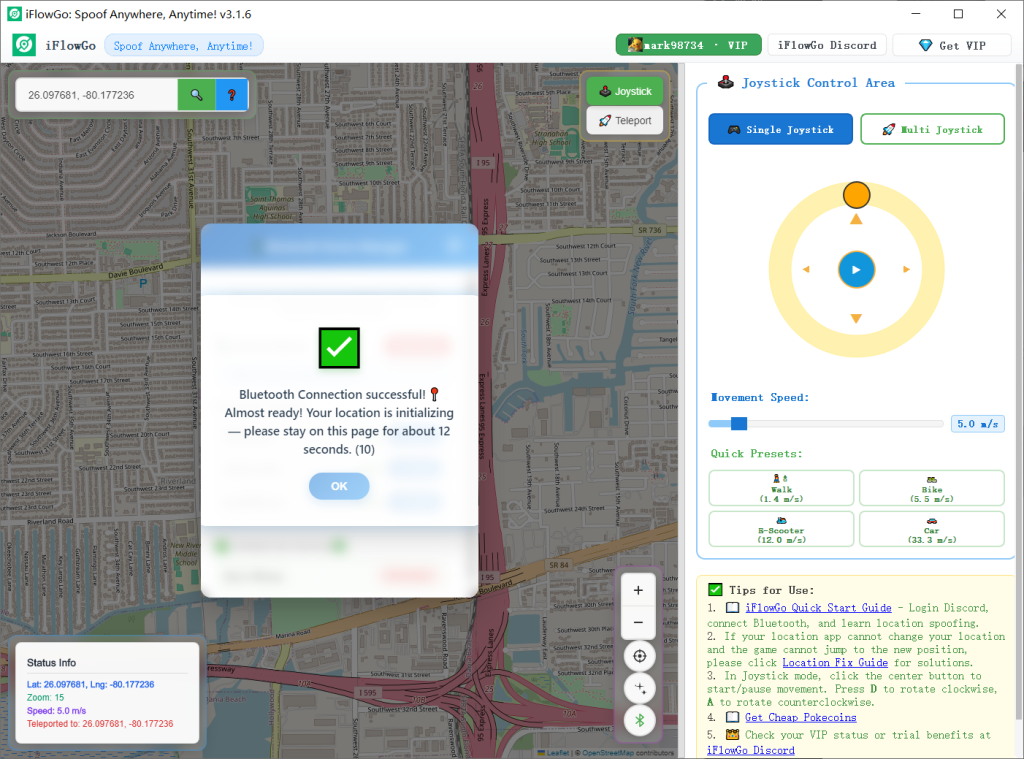
- After that, you'll see a message confirming Bluetooth is connected, location has been set, and "You can now spoof your location" — at this moment you're fully prepared to switch your position.
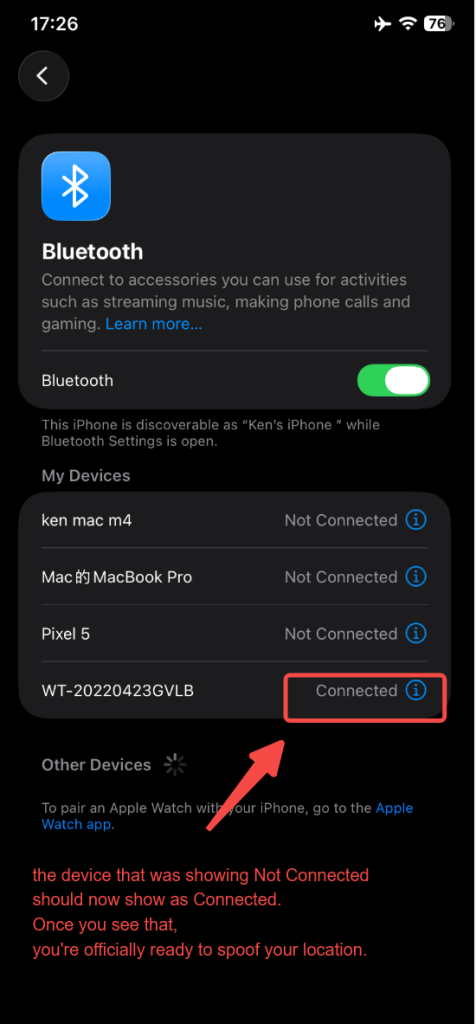
- Also, glance at your iPhone's Bluetooth list — the device that was labelled Not Connected should now say Connected. Once you see that, you're officially ready to spoof your location.
6. Choose a Location Mode
- Joystick Mode 🕹️: Best for gradual movement within Pokémon GO, mimicking actual walking 🚶♂️.
- Teleport Mode 🚀: Leap instantly to any destination inside a 15 km radius, great for quickly reaching hunting zones in Monster Hunter Now 🐲.
7. How to Fix the Map Not Showing Your Location
If the map fails to indicate your position:
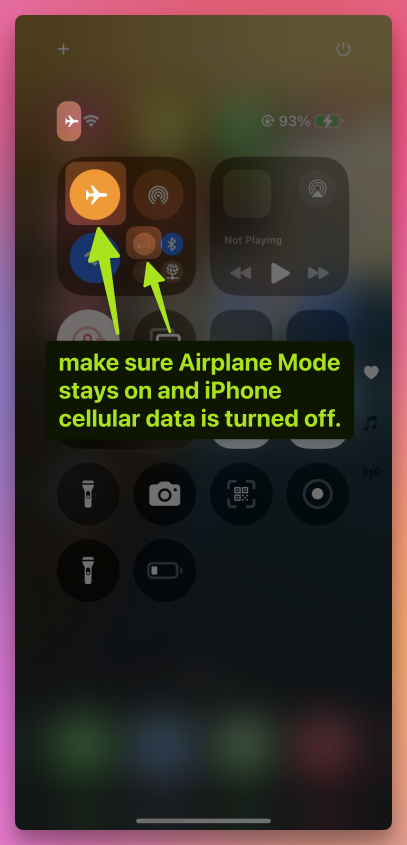
- Check that Airplane Mode stays on and iPhone cellular data is turned off.
- Maintain the Bluetooth connection active 🔗.
- Switch off Wi‑Fi 📡, and Location Services 📍 on your iPhone
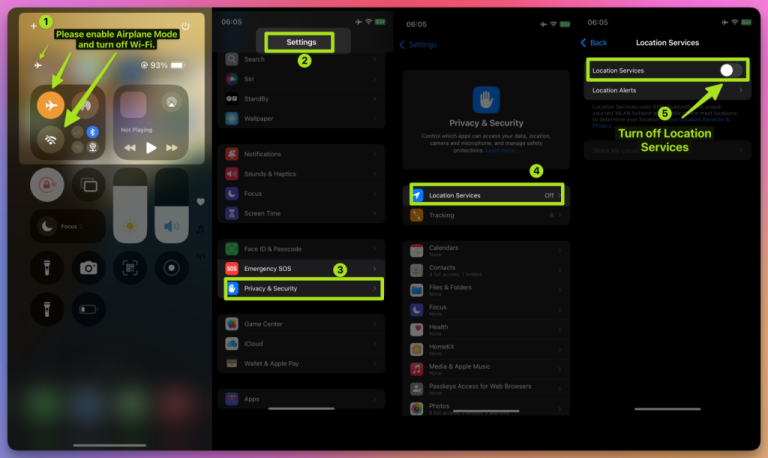
Pause 10 seconds ⏳. Then turn them back on.
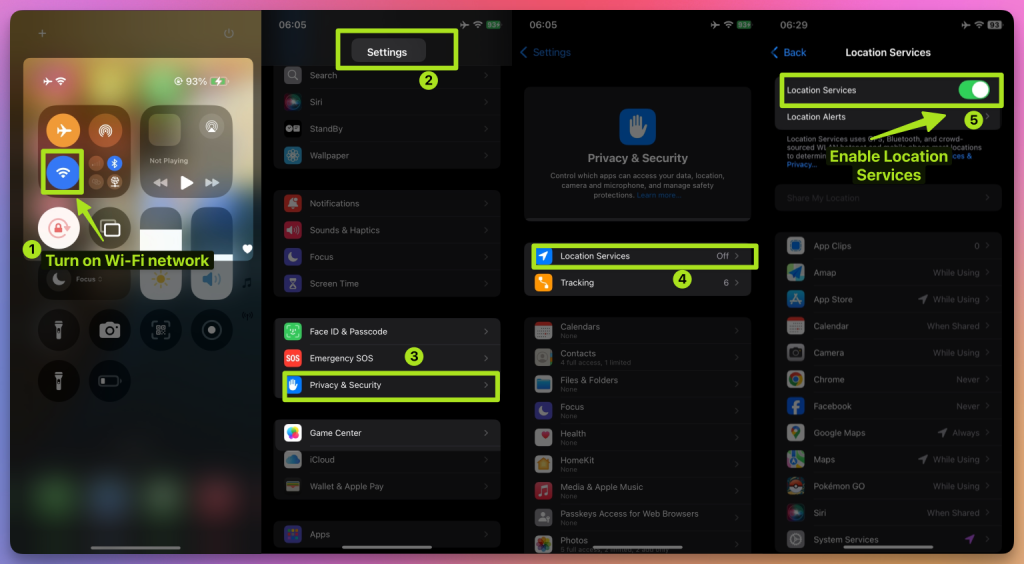
8. Tips for Using iFlowGo in Pokémon GO, Monster Hunter Now, and Snapchat
Pokémon GO 🎮:
- Employ Joystick Mode to wander slowly around your regular region and catch Pokémon 🐾 without risking bans 🚫.
- Utilise Teleport Mode to join Gym fights or snag rare Pokémon.
Monster Hunter Now 🐉:
- Use Teleport Mode to instantly access monster spawn points.
- Choose Joystick Mode for close‑range combat movement.
Snapchat 📸:
- Check in and snap pictures in various cities 🏙️ to unlock distinctive location filters ✨.
9. Configure NextDNS for Teleports Over 15 km
If you're teleporting more than 15 km, you must set up NextDNS beforehand — otherwise your spoof may become erratic or fail after a brief period.
⚠️ Setup steps:
- 👉 Follow the NextDNS Setup Guide.
- Apply the provided NextDNS configurations to both your iPhone and Windows computer.
- Once finished, you can safely teleport over long distances without losing location synchronisation.
- During our evaluations, NextDNS kept the spoof stable for 10+ hours, even throughout extended gaming sessions.
💡 Tip:
- For jumps under 15 km, completing Steps 1–8 suffices.
- However, even for short‑range spoofing, we strongly suggest turning on NextDNS for added reliability.
10. All Set! Start Your Virtual Adventure
You've completed the initial iFlowGo setup successfully ✅. Now you're free to roam in Pokémon GO, Monster Hunter Now, Snapchat, and more—explore the digital world your way! 🚀 iFlowGo, Spoof Anywhere, Anytime — Change Your iPhone GPS Instantly. No jailbreak, no modified apps. 🏆 #1 iOS spoofing tool on Patreon. ✅ 100% Safe.