How to Use iDeepGo on iPhone and Android – The Ultimate Walkthrough
iFlowGo has earned its reputation as the top location spoofing tool on the market. With an Android + iPhone combination, you can manipulate the GPS on up to 3 iPhones at once — each running the official Pokémon GO app — and do so with 100% safety. No jailbreak is required, and it’s fully compatible with Monster Hunter Now, Snapchat, and more.
This tutorial will take you through every stage: installing iFlowGo on Android, pairing over Bluetooth 🔗, and leveraging the two primary functions (Joystick & Teleport). By the end, you’ll be ready to spoof right away.
⚠️ Heads up: Even for short hops, we advise using NextDNS to ensure rock-solid performance (our tests show spoofing remains stable for 10+ hours). For movement within 15 km, simply follow steps 1–8. If you need to jump farther than 15 km, be sure to complete Step 9 (Configure NextDNS for Teleports Over 15 km) so your location doesn’t drift.
1. What You’ll Need Before Starting
Gather these essentials:
- ✅ iFlowGo must be installed and functioning correctly.
- 🔑 A VIP or trial plan is mandatory (Bluetooth pairing won’t work otherwise).
- 📱 One iPhone (iOS) and one Android handset.
2. Disable Bluetooth on Both Devices
Pairing can fail if Bluetooth is still active, so follow this sequence:
- On your Android: Switch Bluetooth OFF → Confirm no gadgets remain connected.
- On your iPhone 📱: Turn Bluetooth OFF as well.
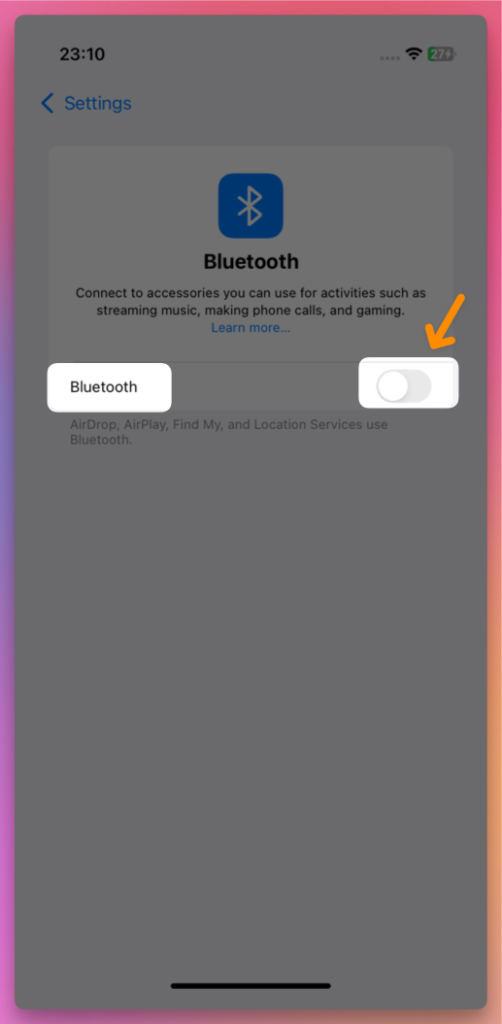
- Then pause for 3 to 10 seconds.
3. Reactivate Bluetooth on Your Computer
- Next, toggle Bluetooth back on for both your iPhone and Android.
4. Open iFlowGo and Sign In with Discord
- Launch iFlowGo → Hit the Discord Login button.
- Your browser will open the authorization page → Click Authorize ✅.
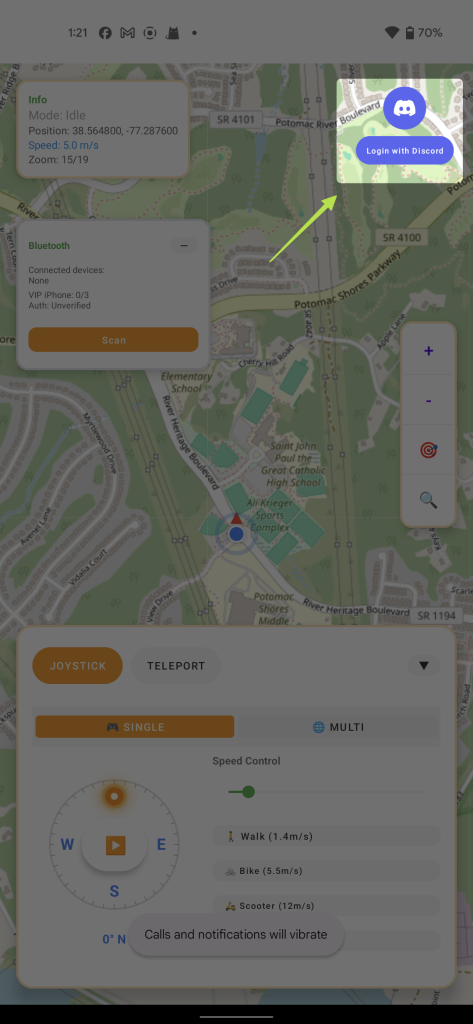
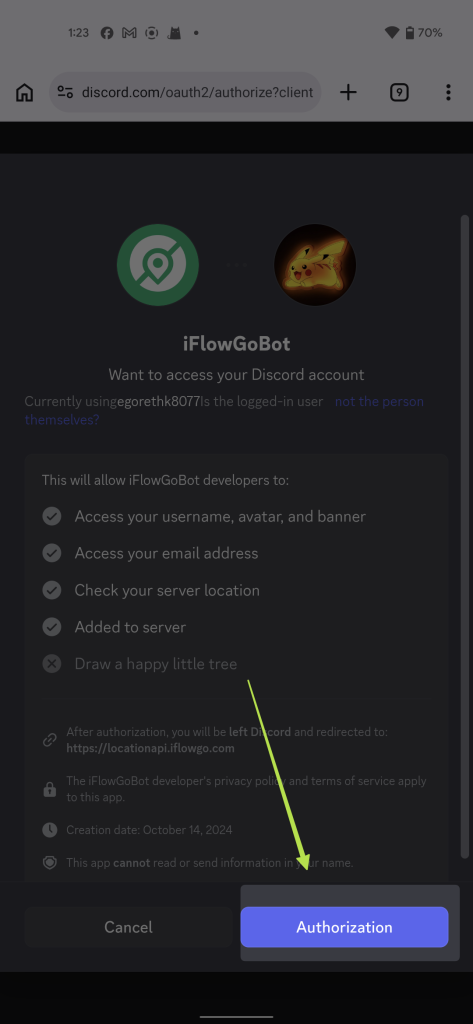
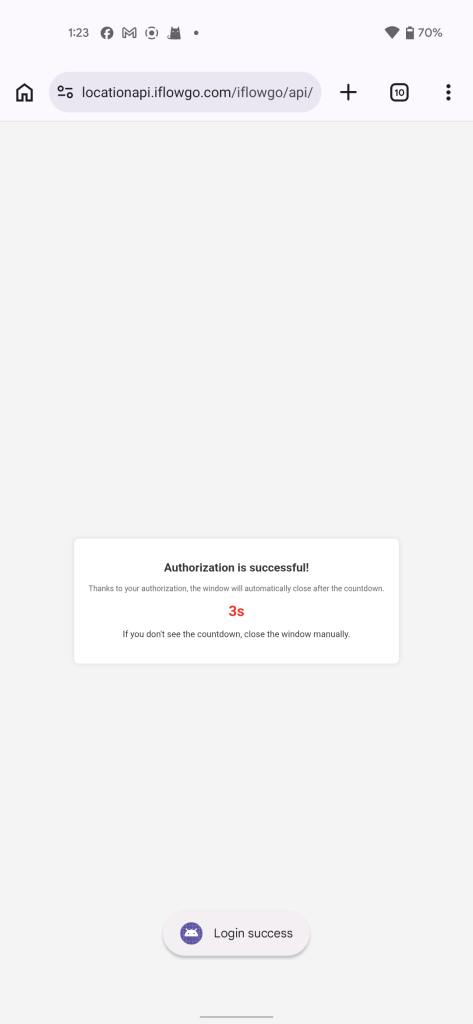
- Return to iFlowGo; the app will automatically complete the login.
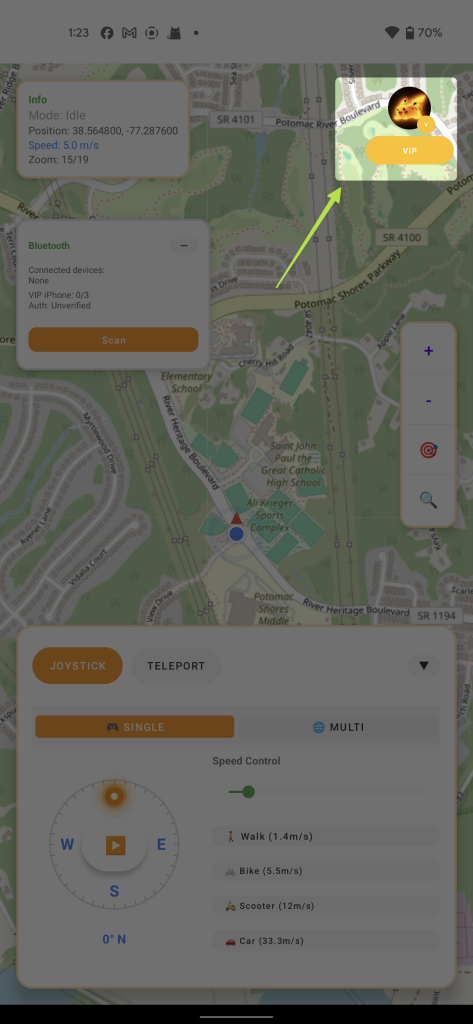
5. Establishing the Bluetooth Connection
- To begin, ensure you disable Bluetooth on both the Android and iPhone first. After that, wait 3 to 10 seconds (this clears the Bluetooth cache), and then turn Bluetooth back on for both devices.
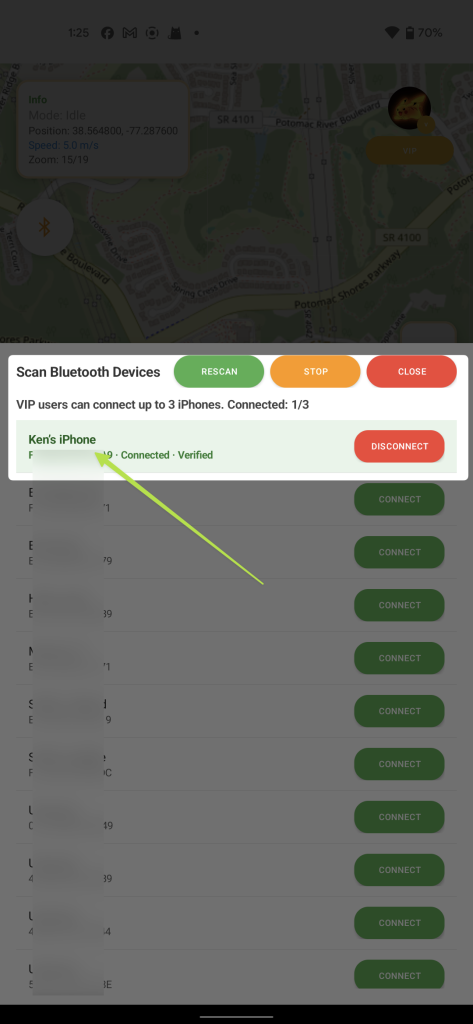
- Inside iFlowGo, tap the Bluetooth icon → Click the Scan button → Pick a Bluetooth device from the list and hit Connect.
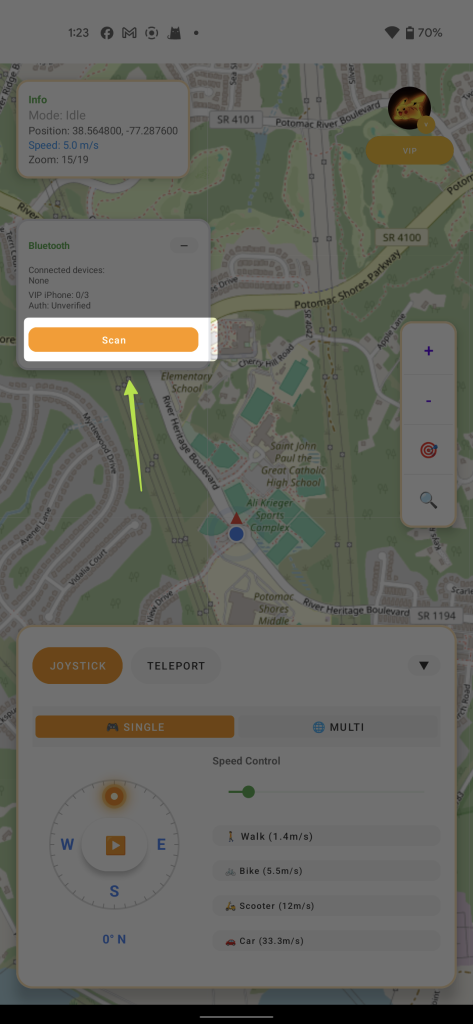
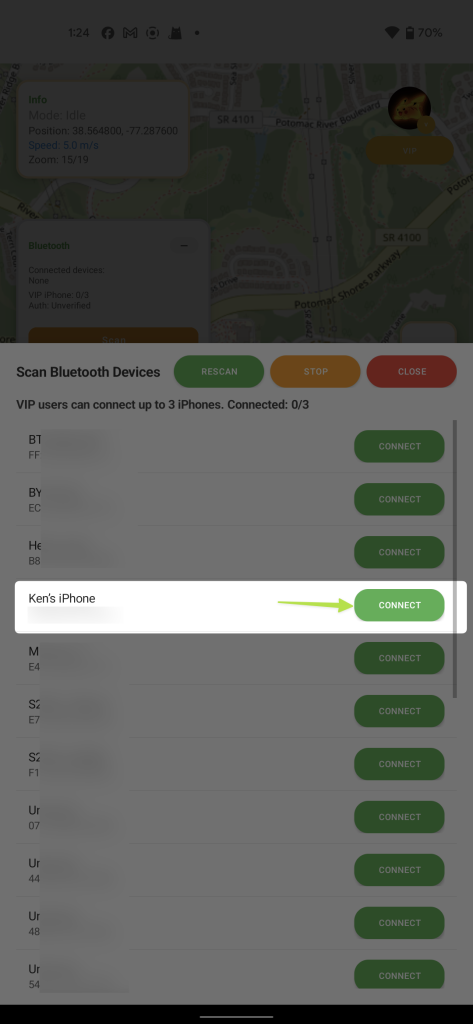
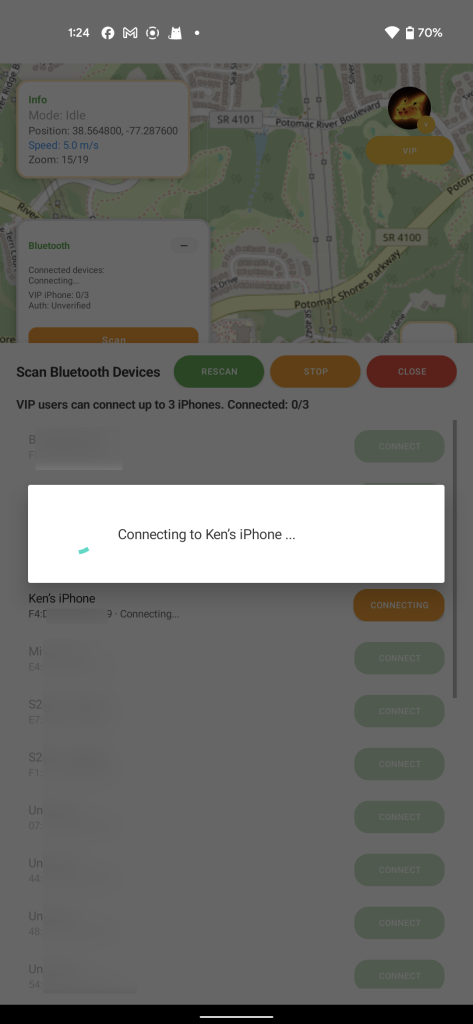
- Proceed through the on-screen prompts until you see the Authentication Successful screen — that’s your cue that everything is set and the link is live.
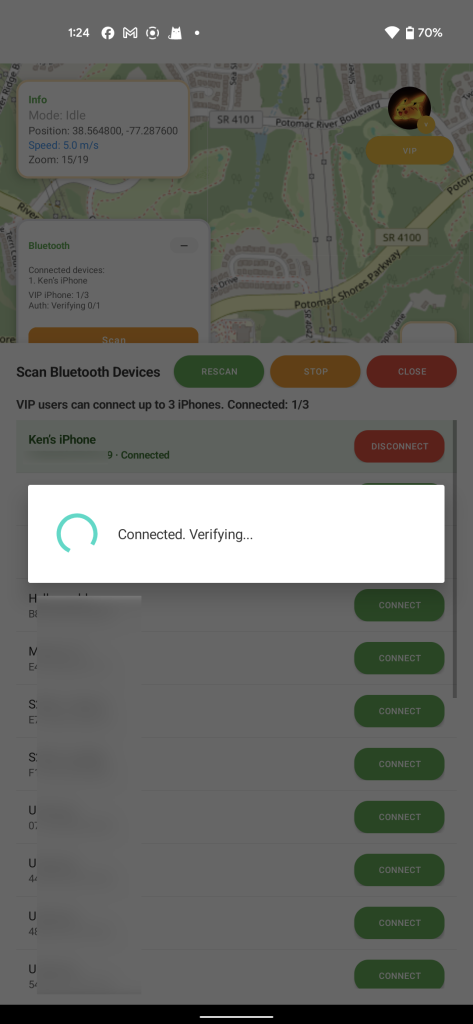
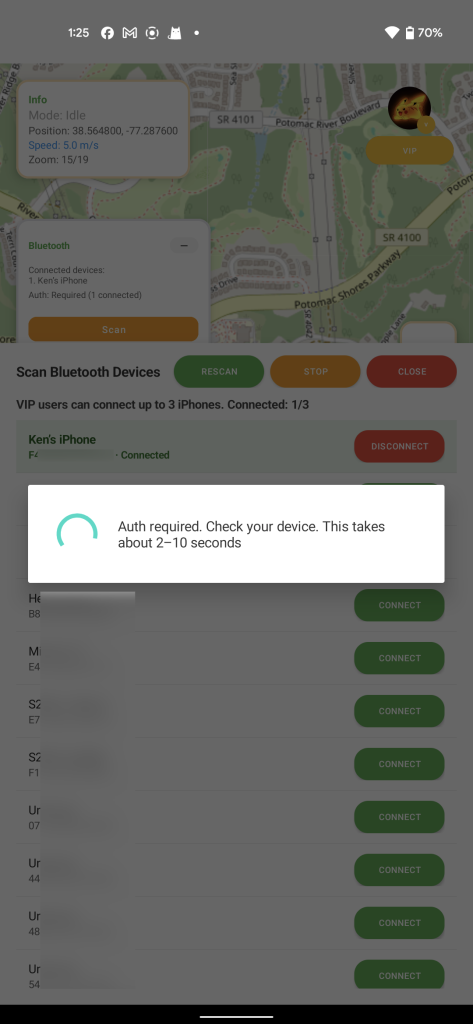
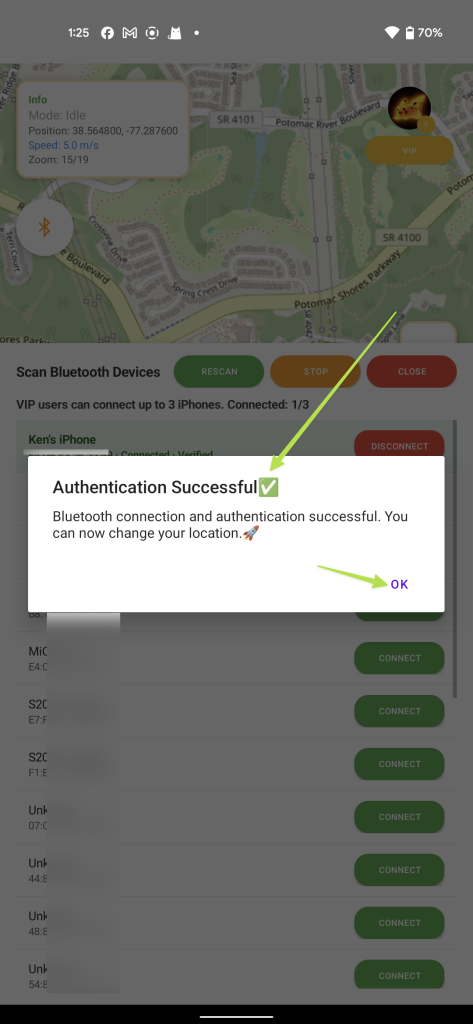
- The list you see is your Bluetooth device panel; any successfully paired devices appear at the top. You can connect as many as 3 iPhones simultaneously to spoof them all at once. However, if this is your first time, we suggest beginning with a single device and then moving through the remaining steps.
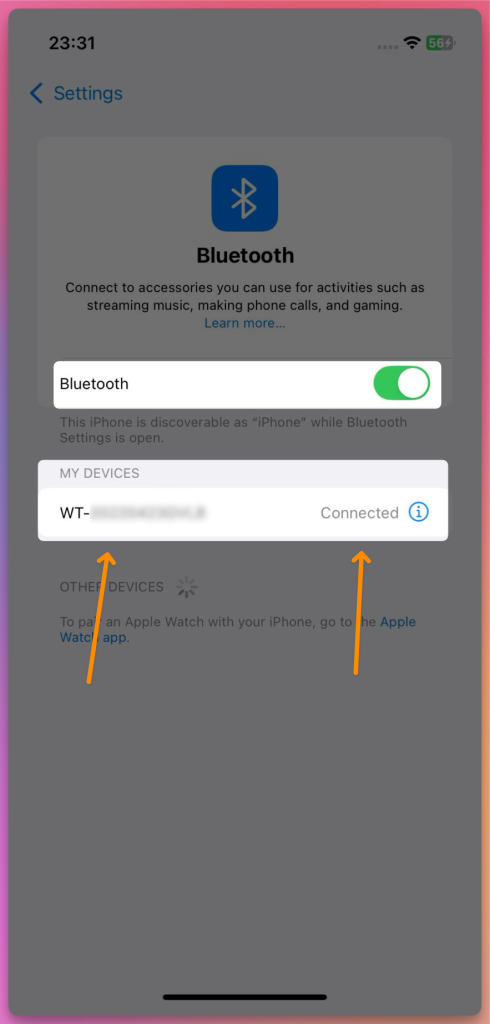
- Your iPhone will also display a “Connected” status.
6. Picking Your Location Mode
Now you’re ready to change your location!
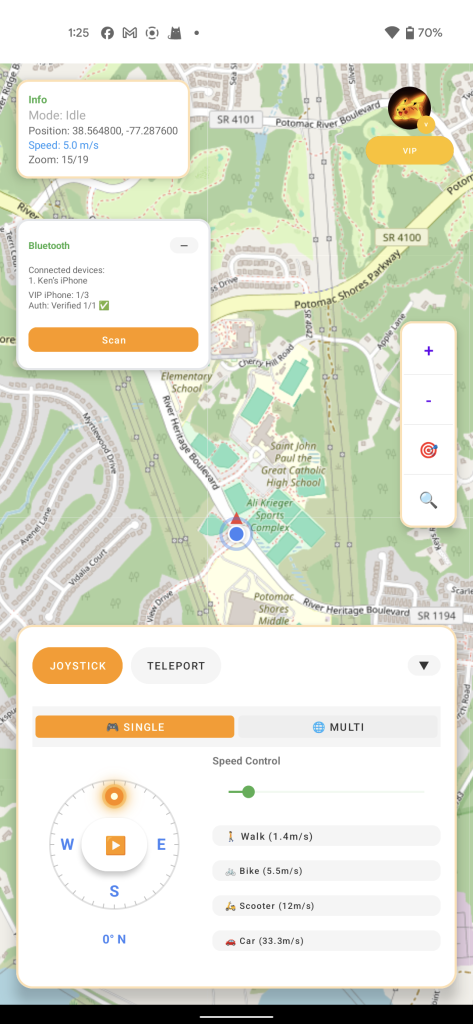
- Joystick Mode 🕹️: Perfect for gradual movement inside Pokémon GO, mimicking real pedestrian walking 🚶♂️.
- Teleport Mode 🚀: Jump instantly to any spot within 15 km — great for reaching hunting areas fast in Monster Hunter Now 🐲.
7. Troubleshooting the Map When Your Location Doesn’t Appear
If the map fails to show your current position:
- Verify that Airplane Mode is enabled and that cellular data on your iPhone is switched off.
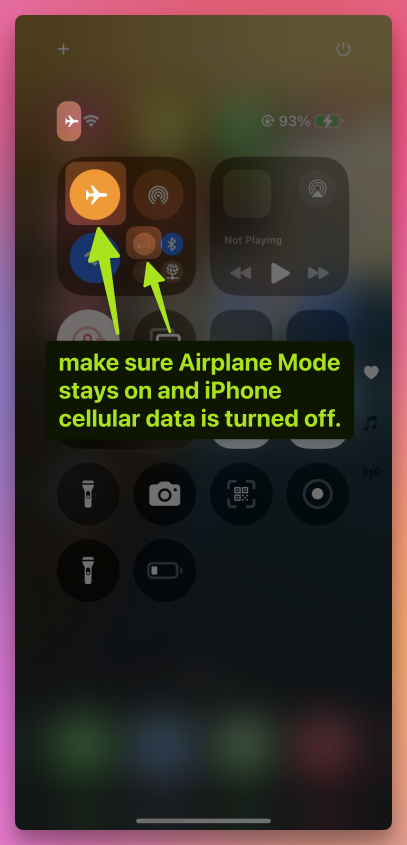
- Maintain the active Bluetooth connection 🔗.
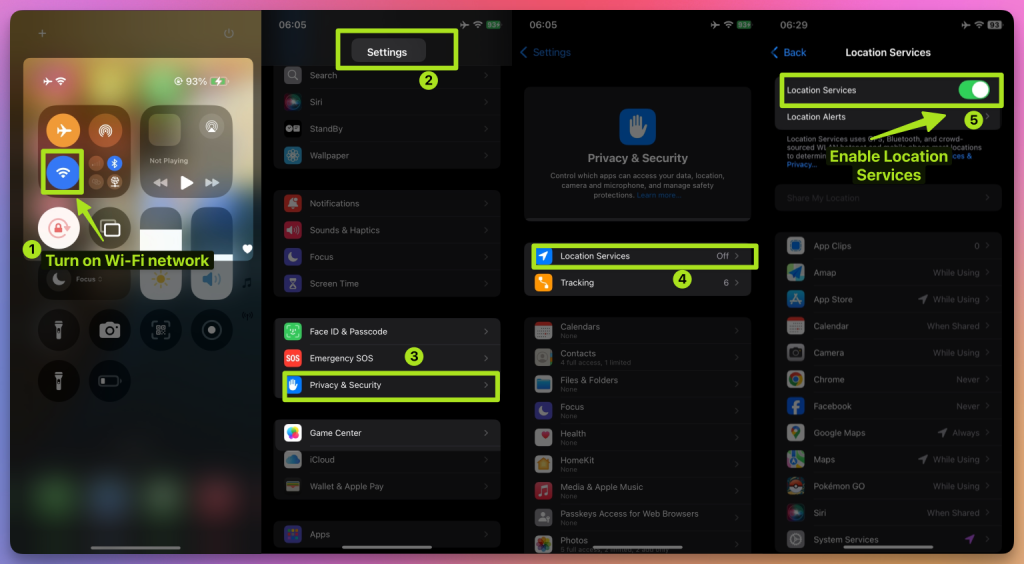
- Turn off Wi-Fi 📡 and Location Services 📍 on your iPhone.
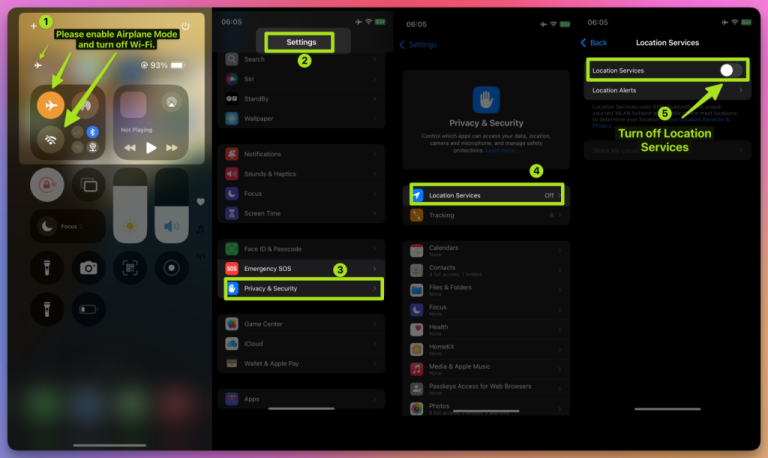
Wait 10 seconds ⏳, then turn them back on.
8. Tips for Using iFlowGo with Pokémon GO, Monster Hunter Now, and Snapchat
Pokémon GO 🎮:
- Employ Joystick Mode to roam slowly around your familiar haunts and gather Pokémon 🐾 without raising red flags 🚫.
- Use Teleport Mode to dive into gym battles or snag rare creatures.
Monster Hunter Now 🐉:
- Rely on Teleport Mode to zip directly to monster spawn points.
- Switch to Joystick Mode for close-quarters combat movement.
Snapchat 📸:
- Check into different cities 🏙️ and snap photos to unlock exclusive location-based filters ✨.
9. Setting Up NextDNS for Teleports Beyond 15 km
When you plan to teleport more than 15 km, you must configure NextDNS beforehand — skipping this step can cause your spoofing to become erratic or stop working after a short period.
⚠️ Configuration instructions:
- 👉 Refer to the NextDNS Setup Guide.
- Apply the NextDNS settings to both your iPhone and Windows PC.
- Once everything is in place, you can teleport long distances without worrying about location sync loss.
- Our testing confirms that NextDNS keeps the spoofed location steady for 10+ hours, even through extended play sessions.
💡 Pro tip:
- For teleports under 15 km, Steps 1–8 are sufficient.
- Nevertheless, we recommend enabling NextDNS even for short-distance spoofing to gain extra reliability.
10. All Done! Your Virtual Journey Begins
You have successfully completed your first iFlowGo setup ✅. Now you can freely shift your location in Pokémon GO, Monster Hunter Now, Snapchat, and beyond — explore the digital world your way! 🚀. Spoof Anywhere, Anytime — Change Your iPhone GPS Instantly. No jailbreak, no modified apps required. 🏆 #1 iOS spoofing solution on Patreon. ✅ 100% Safe.