Resolving iDeepGo Location Problems Quickly and Easily
📦 Complete NextDNS Configuration Tutorial
When you only need to spoost a short distance (less than 15 km), iFlowGo typically functions without any extra configuration right out of the box. 🚀
But if your plan involves teleporting across greater distances—more than 15 km (say, hopping from Singapore to the United States)—then setting up NextDNS on your iPhone becomes essential. This extra step is necessary to bypass iOS location limitations and ensure your faked position appears correctly inside Pokémon GO and other location‑aware apps.
Below we’ll take you through the full procedure for configuring NextDNS, starting from the initial download all the way to advanced fixes for Wi‑Fi‑based spoofing. After following these instructions, you’ll be able to spoof your location smoothly from anywhere on the planet. 🌍
This guide explains how to adjust NextDNS on an iPhone, including detailed steps for tweaking Wi‑Fi spoofing and DNS records. While its primary purpose is to solve iFlowGo location problems in certain network environments, it also works as a general reference for anyone setting up NextDNS from scratch.
Part 1: Basic NextDNS Configuration
Step 1: Download and Install the NextDNS App
- Obtain the AppOpen the App Store
- Look up “NextDNS”
- Tap Install
- Initial LaunchOpen the NextDNS app
- Tap “Get Started”
- Sign in or create an account with NextDNS
Step 2: Configure NextDNS in Your Browser
1. Access the Dashboard
- Navigate to: https://my.nextdns.io/
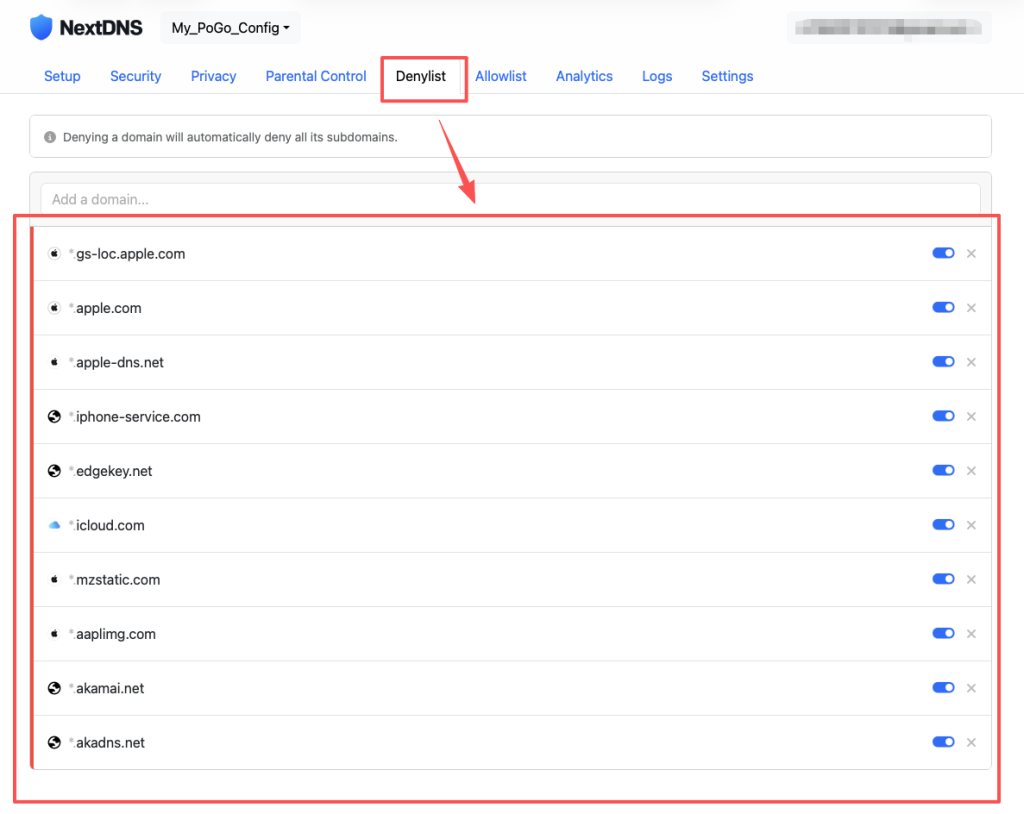
2. Blocklist Domains
Under Denylist, enter the following Apple
- domains:akadns.net
- akamai.net
- aaplimg.com
- mzstatic.com
- icloud.com
- edgekey.net
- iphone-service.com
- apple-dns.net
- apple.com
- gs-loc.apple.com
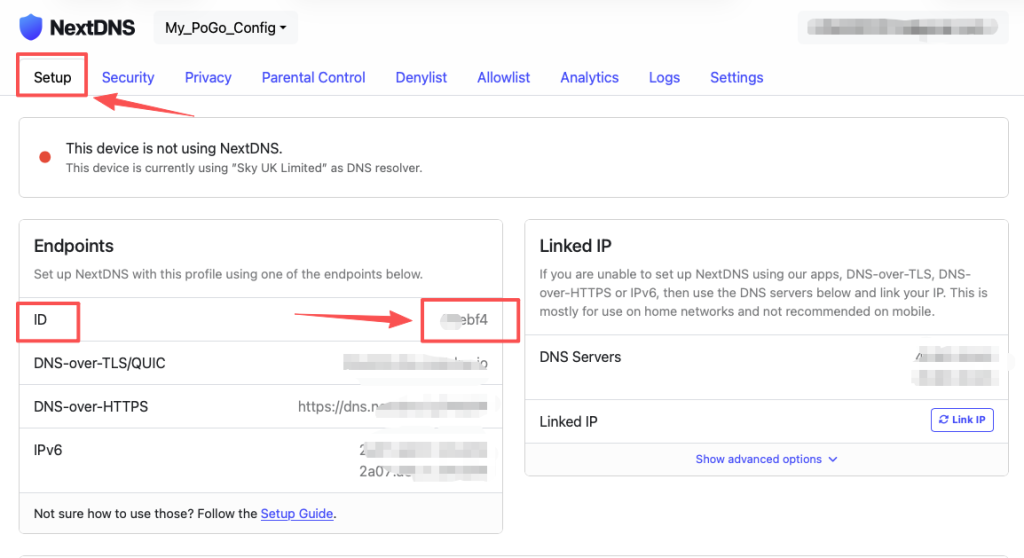
3. Find Your Configuration ID
- Go to the “Setup” tab
- Copy your personal Configuration ID (for example,
9c1c6f)
Step 3: Configure DNS on Your iPhone
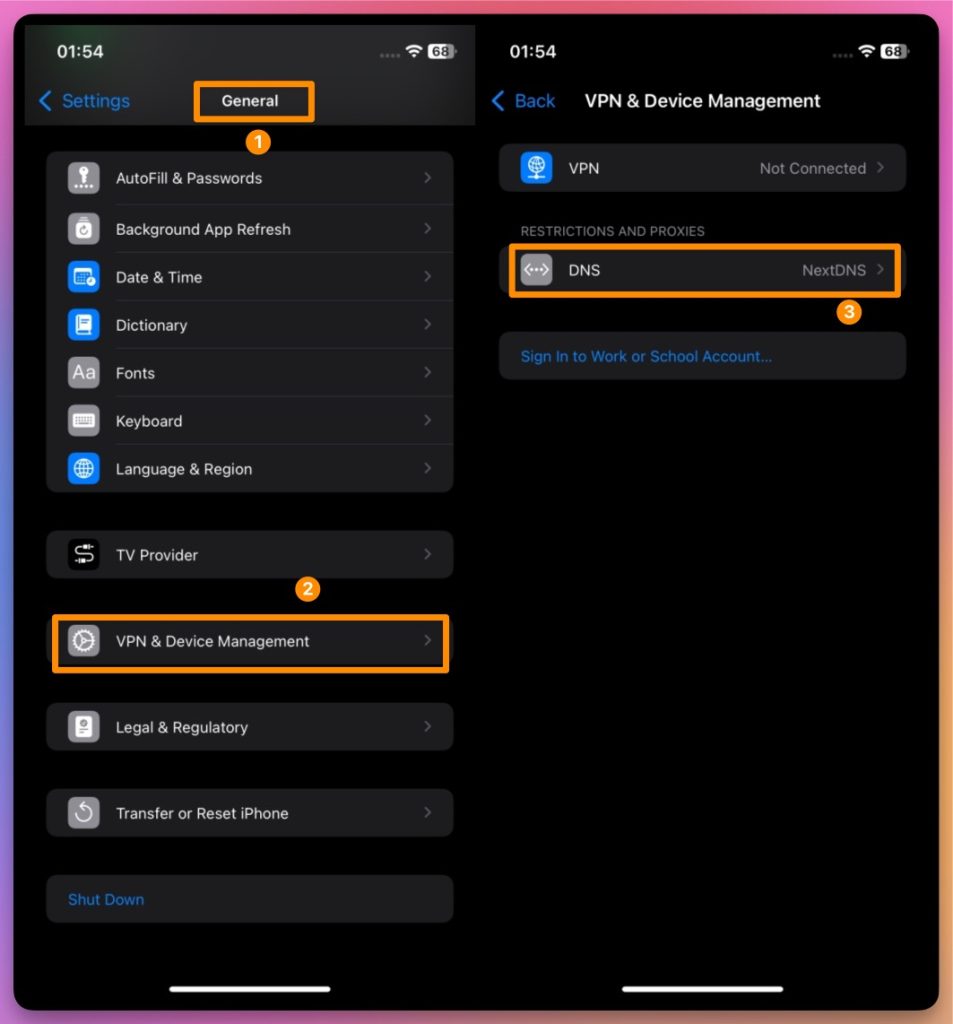
1. Activate DNS
- Open the Settings app on your iPhone
- Navigate to General > VPN & Device Management > DNS
- Choose NextDNS
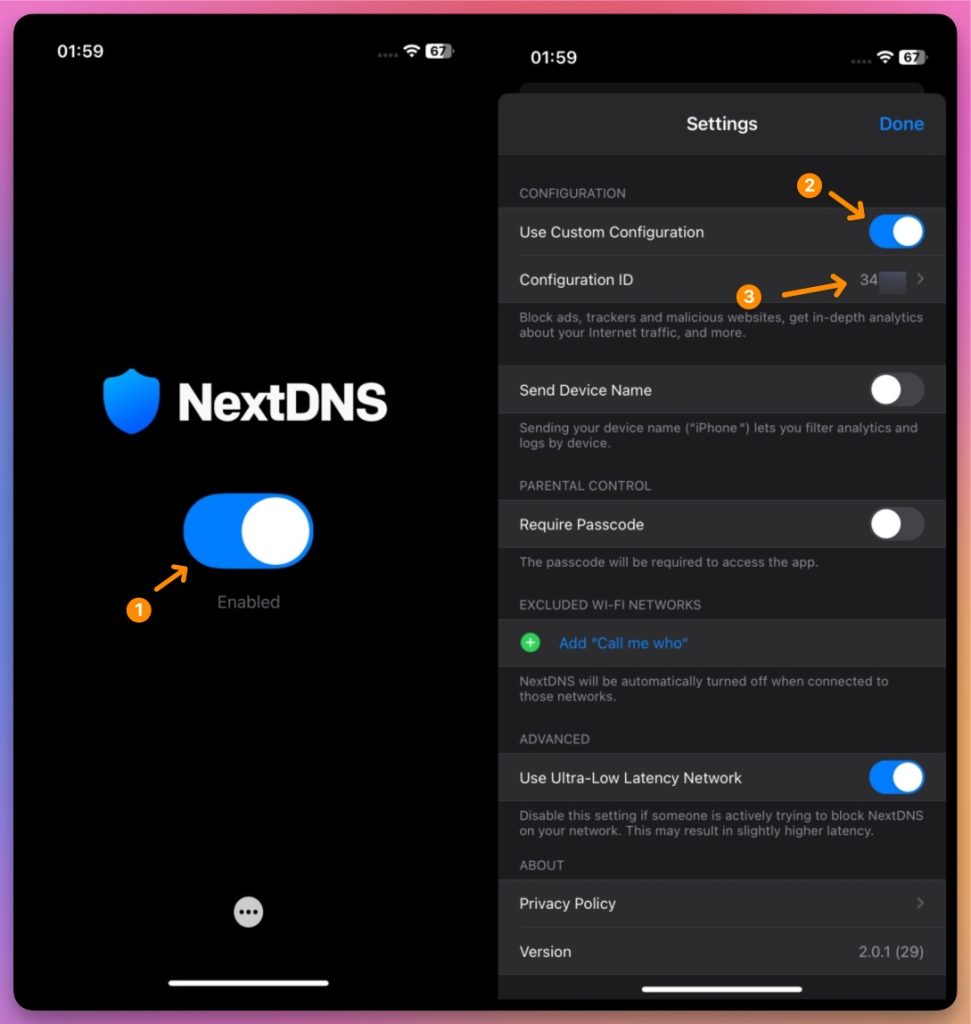
2. Apply the Configuration
- Launch the NextDNS app
- Turn on NextDNS
- Paste the Configuration ID you copied earlier
Part 2: Advanced Wi-Fi Spoofing Configuration
Step 4: Set Up Virtual Location
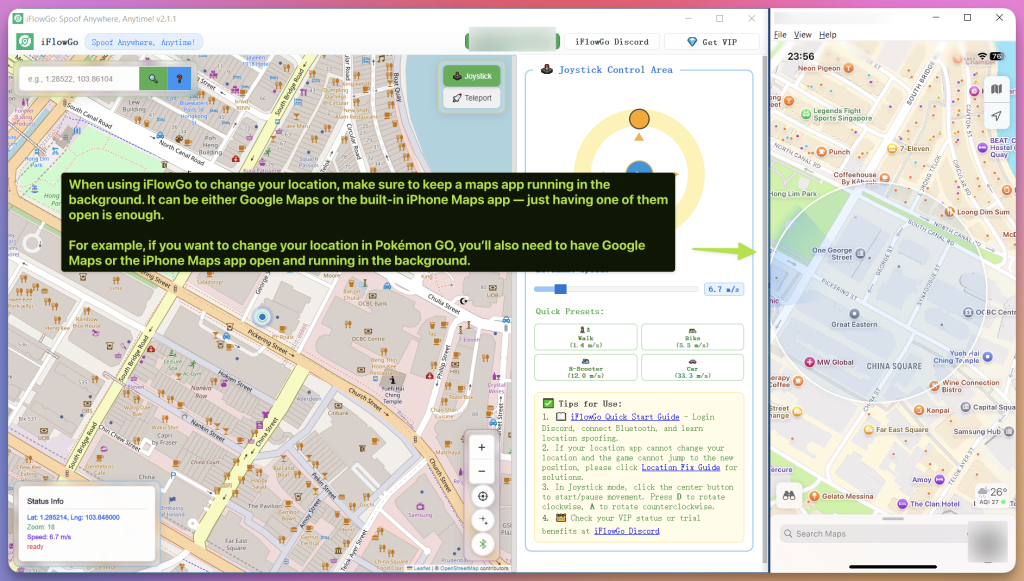
1. Simulate the Target Location
- Open your location‑spoofing tool
- Pick the iOS location you want to fake
- Verify that the map shows the right coordinates
2. Network Connection Test
- Ensure that Airplane Mode remains on and that iPhone mobile data is switched off.
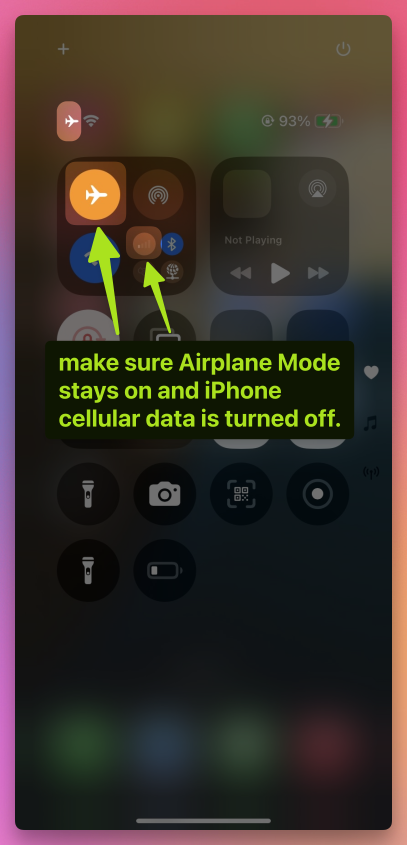
- Confirm that Wi‑Fi and NextDNS are both active
- Check that you have a working internet connection
3. Advanced Troubleshooting: Reset Location Services(
(Important — perform these steps if your location refuses to change)
- Make sure Airplane Mode stays on and that iPhone cellular data is turned off.
1. Go to Settings > Privacy & Security > Location Services
2. Toggle Location Services off
3. Turn off Wi‑Fi
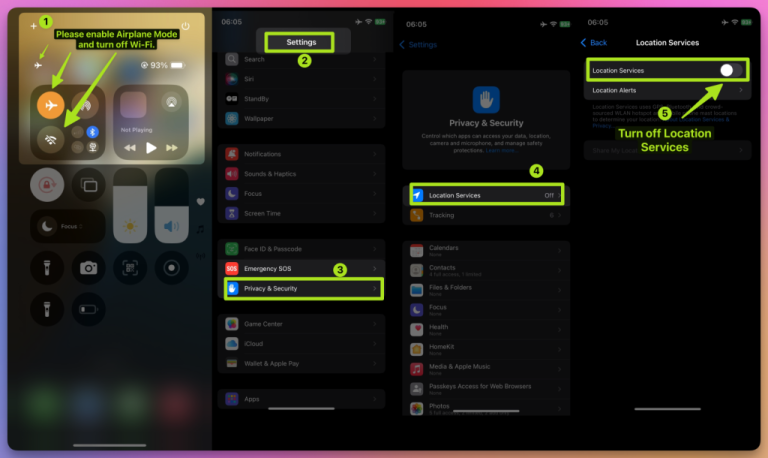
4. Wait for 10 seconds
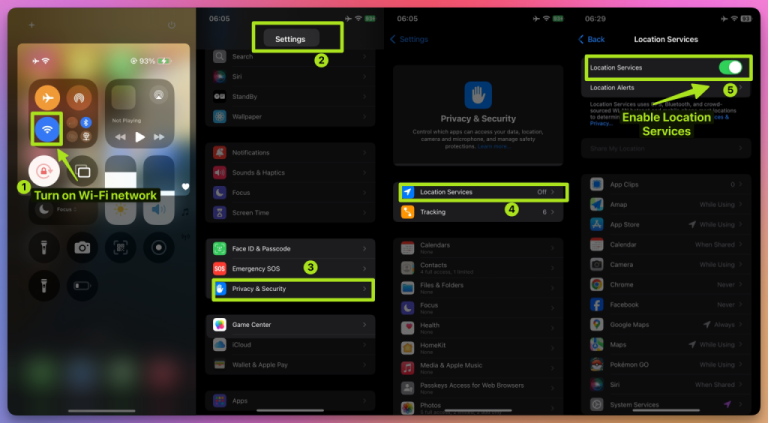
5. Re‑enable Wi‑Fi
6. Return to Privacy & Security > Location Services and turn Location Services back on
Part 3: Game Launch & Final Setup
Step 5: Launch the Game App
- Start Pokémon GOMake sure all preparation steps are done
- Open Pokémon GO
- Sign in to your account
- Verify Your LocationCheck that the in‑game map loads without issues
- Your avatar should appear at the virtual location you selected
- Try walking or moving around inside the spoofed area
🛠 Troubleshooting Tips
- While spoofing, always keep Airplane Mode active and cellular data disabled on your iPhone.
1. NextDNS Not Working
- Ensure DNS is enabled in your network settings
- Re‑verify the Configuration ID is entered correctly
- Confirm that Transport Layer Encryption is turned on
2. Location Still Not Working
- Double‑check that all Apple domains have been added to the Denylist
- Make sure your network settings are applied properly
- Check that your location‑spoofing tool is still running
3. Game Not Updating Location
- Both your network and location settings need to be stable
- Log out of Pokémon GO and then sign back in
- Review your Wi‑Fi settings to make sure they are correct
✅ Final Configuration Checklist
- During spoofing, keep Airplane Mode enabled and cellular data switched off on your iPhone.
- NextDNS app installed and configured
- Configuration ID copied and pasted correctly
- Apple domains added to Denylist
- NextDNS enabled on iOS
- Stable Wi‑Fi connection
- Pokémon GO avatar appears at the correct location
🎉 Setup Complete!
Enjoy the game and spoof confidently with accurate location settings!